


Slow for months, or slow since yesterday? That question decides how to speed up a WordPress site, because each kind of slow has its own fix. A site that has always dragged needs a different step from one that crawled overnight.
The order is the same for both. Measure the pages that matter, work out which kind of slow you have, fix the cause one change at a time with a way back, then measure again. Some steps happen in the WordPress dashboard. Others belong to your host.
This guide is for people who run a working WordPress site themselves: a shop, a service business, a blog with years of posts behind it. Nothing in it asks you to edit files or configure the server. Anything you can change from the dashboard is written as a step, anything only your host can change is written as a question to send them, and the last section lists the signs that the rest belongs to someone else. It matters twice over, because visitors don’t wait for slow pages and a slow dashboard eats your own working hours.
Speeding up a WordPress site starts with a diagnosis, not with one more plugin. Tweaks stacked blindly can leave a site slower than before, or broken, with nothing clean to go back to. The limit of that rule is simple. If your site has never been measured and nobody remembers what changed on it, the diagnosis is short: take the baseline and start with the basics, caching and images. None of this makes plugins the villain either. The right one, chosen for a known cause, can be the fix.
Measure before you change anything
Before you change anything, write down how slow the site is now: the same few pages, the same tool, several runs each, mobile and desktop. That record is your baseline, and repeating the same measurement after every change is the only way to tell whether a fix helped, did nothing, or made things worse.
Use the home page plus the pages that bring in money or leads: a product page, the booking or contact page, the post most people land on. Google’s PageSpeed Insights is enough for the job: you paste an address, wait for the report and note both results. A spreadsheet with one row per change will do.
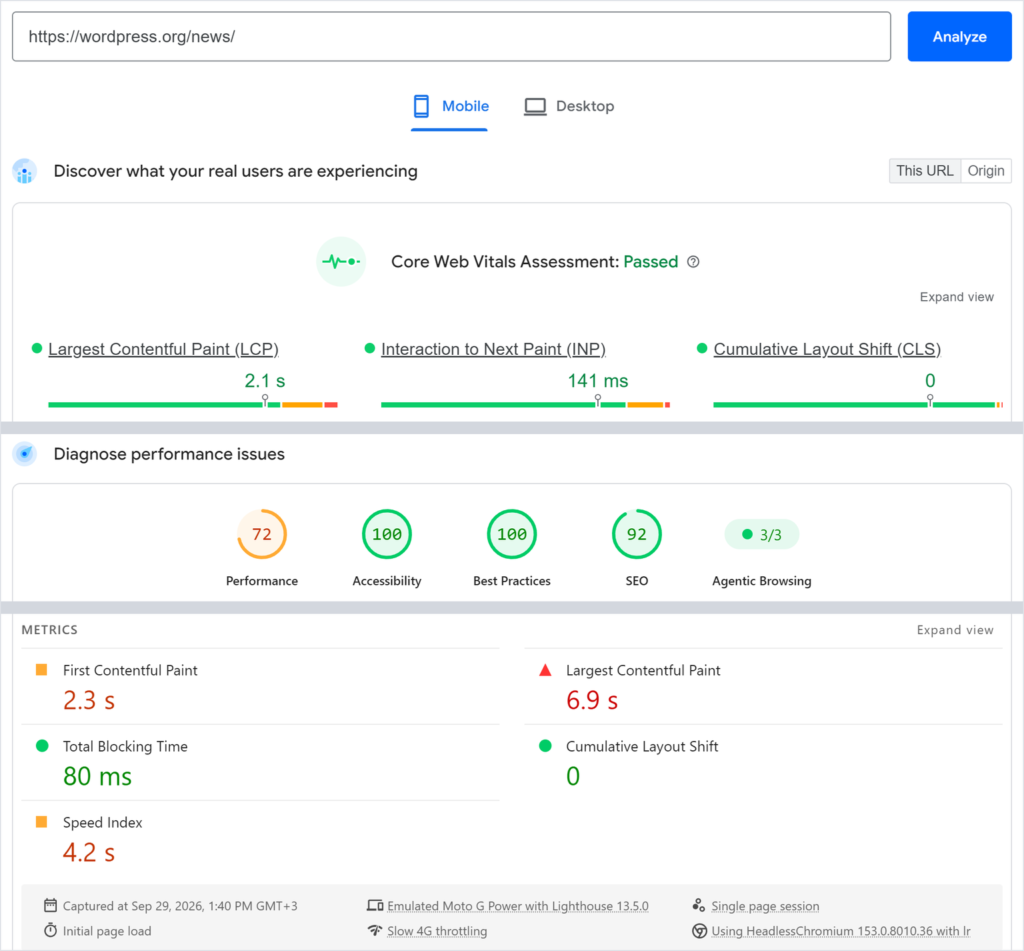
So why can the score look great while customers still wait? Because the score comes from a lab. PageSpeed Insights loads your page in simulated conditions, a mid-range phone on a mobile network for the mobile test and an emulated computer on a wired connection for desktop, and calculates the Performance score from that one run. Your visitors use their own phones and their own connections, at their own distance from your server. What they feel can be faster or slower than the lab says, and the simulated phone is why the mobile score tends to sit below the desktop one.
The same report can also show a second kind of data, called field data, gathered from real Chrome users who visited the page over the previous 28 days. When your page has it, trust it over the score. It is organized around Core Web Vitals, the measurements Google uses to judge loading, responsiveness and visual stability: Largest Contentful Paint (how soon the main content appears), Interaction to Next Paint (how quickly the page reacts to a tap or click) and Cumulative Layout Shift (how much the layout jumps while it loads).
Google calls a page good when Largest Contentful Paint is 2.5 seconds or less, Interaction to Next Paint 200 milliseconds or less and Cumulative Layout Shift 0.1 or less. Each is judged at the 75th percentile, meaning three in four page loads do at least that well, and separately for mobile and desktop. (Some guides still list First Input Delay as one of the three. It has been retired and replaced by Interaction to Next Paint, so skip advice built around it.) Chase these three numbers. The perfect score can wait.
What actually makes a WordPress site slow
A WordPress site is slow in one of three places: the server takes long to answer, the page takes long to build, or the browser has too much to download once it arrives. Which one you’re dealing with depends on your symptom, so name the symptom before you pick a fix.
When a visitor opens a page that isn’t served from a ready-made cached copy, the server runs WordPress with your theme and plugins, asks the database for content and assembles the page on the spot. A cache hands out a copy built earlier and skips most of that work. Whatever the browser fetches afterwards, such as images and scripts, adds its own wait on top.
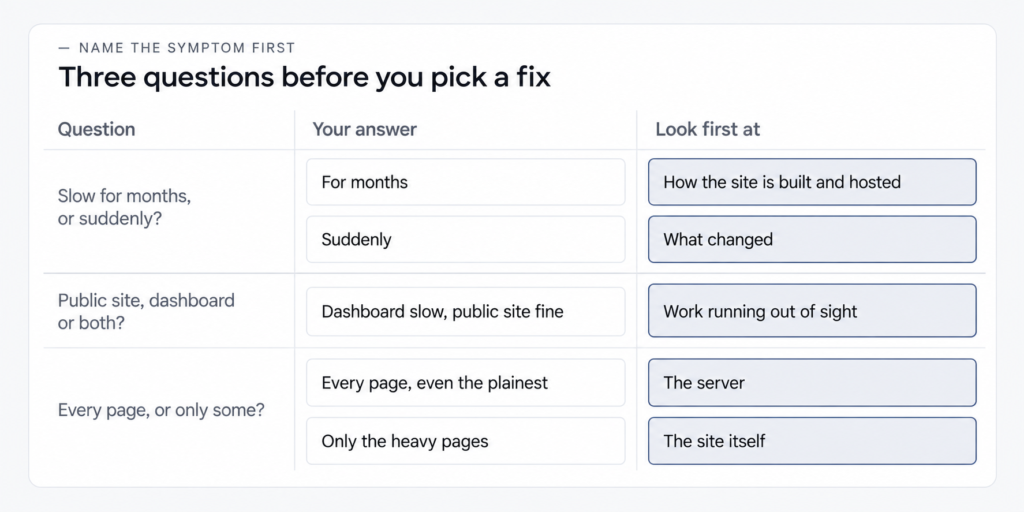
If you’re asking why your WordPress site is so slow, three questions narrow it down:
- Has it been slow for months, or did it slow down suddenly?
- Is it the public site, the dashboard, or both?
- Is every page slow, or only some?
Slowness that has been there for months points to how the site is built and hosted, which the fixes by cause further down deal with. A sudden slowdown points to something that changed. A slow dashboard behind a fine public site points to work running out of sight. And if everything is slow, even the plainest page, the server is the first suspect.
It got slow suddenly. When a site that was fine yesterday is slow today, start with what changed before you touch any optimization setting. In the dashboard, check for recent updates to WordPress, the theme or a plugin, and for any plugin added in the last few days. Ask your host whether traffic jumped or bots started hitting heavy pages, such as downloads or search results, and whether anything happened on their side. If one change lines up with the slowdown, undo that change first and measure again.
A service company’s WordPress site came to our team at IntegroFlow after a theme update slowed it down: on some pages, its menu and contact form woke up a few seconds after the content appeared. The update itself was fine. The new theme’s scripts clashed with old minification settings, which shrink and bundle scripts by fixed rules. In this case Total Blocking Time, a lab measure of how long a page is too busy to respond, fell from 620 ms to 110 ms after the whole job: fixing the clash, removing duplicate libraries, trimming the fonts, caching static files and deferring minor scripts.
Changing optimization settings at random would only have buried that clash deeper. Find what changed and what it collides with, and only then adjust anything.
The admin is slow. Page caching speeds up what visitors see, and it usually does little for the dashboard you use while logged in. So a fast public site can sit on top of a slow admin, and one more caching plugin tends not to reach it. From the dashboard, look for plugins that run heavy jobs in the background or pile widgets onto the dashboard screen, and compare how the admin behaves with one suspect switched off, on a staging copy or at a quiet hour. The rest is a question for your host: how long the server takes to respond while you’re logged in, and whether scheduled background tasks are backing up.
Our team saw exactly this on a WordPress blog with about 1,800 posts. Readers got acceptable pages, while logging in and opening the editor held up publishing. None of the causes showed on the front end: a database swollen with old revisions and temporary records, a plugin that started a heavy check whenever the editor opened, and WordPress’s scheduled tasks firing during ordinary visits.
From our practice
A quick public site says nothing about the dashboard. If you publish, time the editor as part of your baseline.
Is it the host or the site? If every page is slow, including the simplest one with little more than text, and the server takes a long time before it sends anything back, the cause is more likely on the server side. If only the heavy pages drag, the ones with sliders or long product lists, the site itself is the more likely cause. A vague message to support saying the site is slow can earn a vague reply, so send a specific question instead, like the one below.
IntegroFlow doesn’t sell hosting and takes no commission from hosting companies, so nothing here steers you toward a particular host. Hosting can also be only part of the story: in the clothing store case near the end of this guide, server resources were one cause among several. Moving to another host is a decision, not a tweak, and it makes sense after your host has answered these questions.
What to ask for
- Ask
- How long does the server take to respond on a simple page of my site? Is server-side page caching switched on for it? Which PHP version does it run, and can it move to the version WordPress currently recommends? Is the site hitting its CPU, memory or process limits?
- Caveat
- Hosting plans differ, and some of these options may not exist on yours. If the reply is to ask the plugin developer, take that as a cue to narrow your question down.
- Check
- After the host answers or changes something, run your baseline measurement again on the same pages and compare.
Before any fix: one change at a time, and a way back
Before the first fix, make sure there is a recent copy of the site that someone has actually restored from, and plan to change one thing at a time. That way every change gets its own before-and-after measurement and a clear way back if it breaks something.
Your host may keep backups, and plugins can make them. The only proof that a copy works is a site that has been restored from it, which is why a host backup is not always a backup. Ask when someone last restored a site from yours.
Then change one thing, measure the same pages the same way and write the result down. If the numbers improve and nothing broke, keep it. If they don’t move, undo it before you try the next idea. Stack several changes at once, and if the site slows down or breaks, you can’t tell which one did it.
A staging copy, a private duplicate of the site for testing, is the safest place to try something, provided it behaves like the live site. It may not. Some paid plugins tie their license to the site address and refuse to run on a copy, so what you see there can differ from what visitors get.
If a change breaks something, go back in order. Switch off the last thing you changed. If that doesn’t help, restore the copy. If you can’t reach the dashboard at all, call your host.
You’ll often read the advice to deactivate every plugin and switch them back on one by one. On a live shop or booking site, that takes the checkout, the forms or the bookings offline while you test. Test one suspect at a time instead, on the staging copy or at the quietest hour of your day, and leave the rest running.
How to speed up a WordPress site, cause by cause
Match each fix to the place where the delay happens: the server, the way pages are built, or what the browser downloads. The table below says who can make each change, what it can break and how to check the result, so you can do the dashboard fixes yourself and hand the rest over.
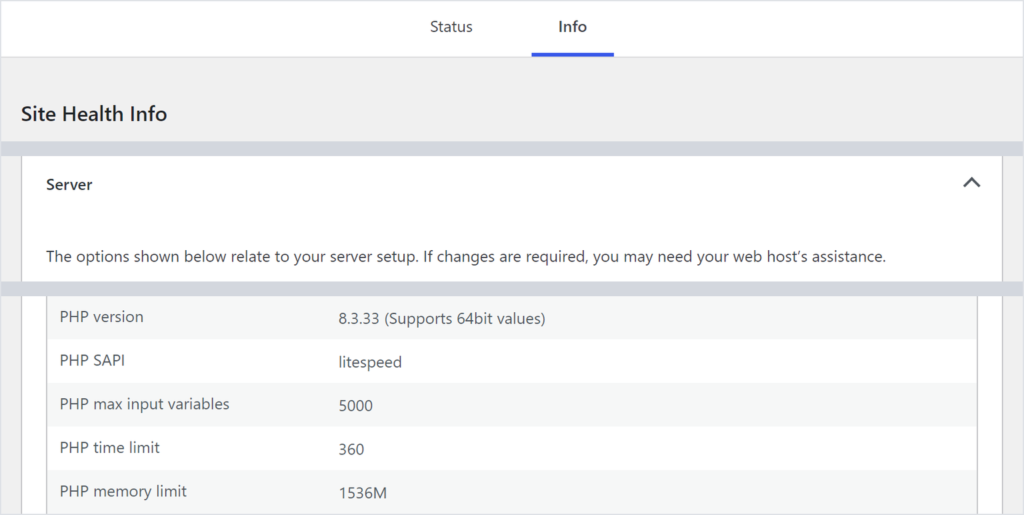
On the server side, start with caching, but ask your host first whether they already cache pages on the server. If they do, a caching plugin on top may add nothing or clash with it. If they don’t, one caching plugin is enough, and two can fight each other. The PHP version, the language WordPress runs on, belongs here too. WordPress recommends PHP 8.3 or newer, and your hosting panel may let you switch it yourself, once you’ve checked that your theme and plugins support the newer version.
A CDN, a network of servers that keeps copies of your images and files in several regions, helps when your visitors are far from your server. When most of them live near it, a CDN matters less.
How pages are built depends mostly on plugins and the theme. What a plugin does on each page matters more than how many plugins you have. A handful of small, well-made plugins can weigh less than a single one that loads a slider and a chat window on every page. Remove plugins that do the same job twice and switch off features nobody uses.
When the theme or page builder itself is heavy, settings won’t rescue it, and the fix turns into a rebuild. The clothing store in the next section is an example: part of the work was moving its pages from a page builder to WordPress’s standard blocks. At that point it is worth knowing when rebuilding costs less than patching.
The database collects old revisions and temporary records over the years. A cleanup plugin can clear them. Run it only with a fresh backup, because a cleanup can’t be undone.
On the browser side, images come first. Resize them to the size they’re shown at, compress them, and use a modern format such as WebP. WordPress already lazy-loads images further down the page, holding them back until the visitor scrolls near them. Recent versions also try to leave the first, main image alone, and it is still worth checking that nothing delays it, because a late main image holds back Largest Contentful Paint.
Chat widgets, tracking pixels, embedded social feeds and review badges each pull code from someone else’s server. Keep the ones that earn their place. Minifying and combining scripts, which strips out spaces and bundles files together, can shave off a little more, and it is also a setting that can break menus and forms after a theme update, as it did on the service company’s site above.
After any change on this list, clear the cache before you measure, or you’ll be testing an old copy. Then run the same pages through the same tool you used for the baseline.
| Fix | Who makes the change | What it can break | How to check |
|---|---|---|---|
| Page caching | You, with one plugin, or your host on the server | Cart, checkout and account pages if they get cached, and a second cache can clash with the host’s | Your baseline pages, plus a test purchase or form sent as a visitor |
| Images | You, from the dashboard, with a compression plugin | Little, as long as the main image at the top isn’t delayed | Largest Contentful Paint in the same report |
| Plugins and features | You | The feature that plugin provided | Measure with the suspect off, on the staging copy or at a quiet hour |
| Theme or page builder | A developer, because this is a rebuild | Layouts built with the old tools | Rebuilt pages against the baseline |
| Database cleanup | You, with a plugin, after a fresh backup | Data you meant to keep | How fast the dashboard and the editor open |
| PHP version | You in the hosting panel, or your host | A theme or plugins that don’t support the newer version | Tools → Site Health → Info → Server shows the version, then click through key pages |
| External scripts | You, or whoever added them | Tracking, or the widget itself | Your baseline pages |
| Minifying and combining scripts | You, in the optimization plugin’s settings | Menus, forms and sliders | Click every menu and form on the main page types |
| CDN | Your host, or you with a plugin that connects a CDN service | Old copies of files served after an update | Your baseline pages, plus a check that new images appear |
If you run a shop, a membership site or a forum, one rule changes. Cart, checkout and account pages differ for every visitor, so they should never be served from a page cache. On these sites caching is set up with exclusions for those pages, by a caching plugin that supports WooCommerce or whatever shop software you use, or by your host.
Which plugin should you pick? Judge it by criteria. Rankings can’t see your site. Use one plugin per job and check that it works alongside your host’s caching. For images, prefer one that compresses on the service’s own servers, so the work doesn’t load yours. Look at whether it gets updates and whether the author answers support questions. A free version can be enough to start.
A fix you can’t undo is a gamble, and a fix you didn’t measure is a guess. If a row names only a developer or your host, the change is not a dashboard job, and if it names you, have your way back ready first.
Where doing it yourself stops
Your own path has run out when one of these is true:
- the fix needs someone to edit files or change the server
- something broke and there is no copy anyone has restored from
- the slowdown returns after every update
- your measurements stop moving whatever you change
- the hours you’re spending are worth more than the result
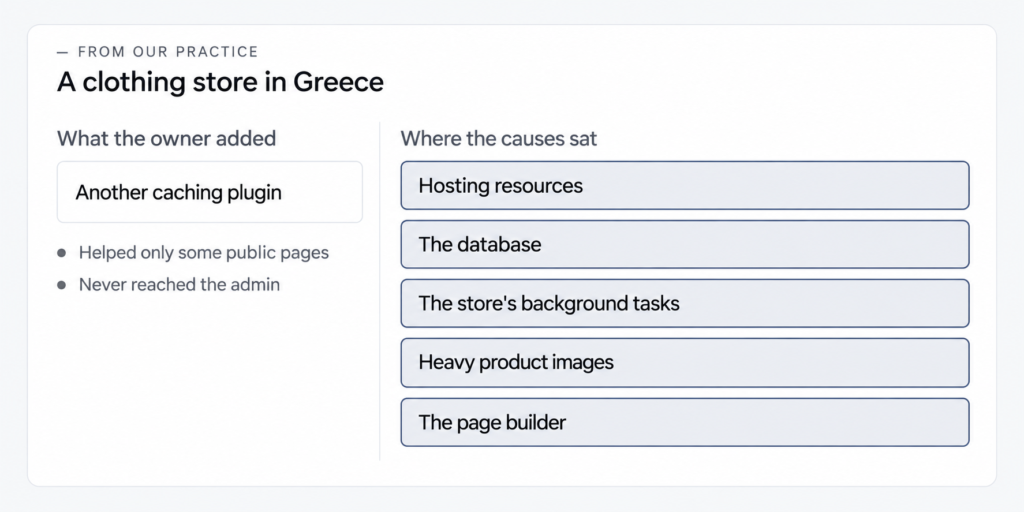
A clothing store in Greece came to IntegroFlow at that point. Its product pages needed 5–7 seconds and its admin 12–18, and the owner had added another caching plugin with no visible change. That plugin helped only some of the public pages and never reached the admin, while the causes sat in several layers at once: hosting resources, the database, the store’s background tasks, heavy product images and the page builder. In this project, once those were fixed, the main admin screens opened in 2–4 seconds.
When the public site and the admin are both slow and another plugin changes nothing, the cause sits somewhere a dashboard can’t reach. Server questions, the PHP version and resource limits go to your host. The build, the theme, plugin conflicts and regular checks go to a developer or a support team. Either way, send the same short brief: the symptom in one sentence, your before-and-after measurements and a list of what you’ve already changed. A brief like that lets whoever picks it up start from your findings.
Speed also drifts. New plugins and updates can slow a site down again over time, and it stays quick when someone checks it on a schedule and catches the drift early, which is what ongoing speed and performance care covers.
Start today with the baseline: a few pages, one tool, mobile and desktop, written down. If those numbers and the signs above say the rest isn’t a dashboard job, send them over and ask our team to find what is slowing your site.
FAQ
Partly, yes. Ask your host whether server-side page caching comes with your plan, resize and compress images before uploading, and remove plugins and features you don’t use. None of that needs a new plugin. Where a plugin helps, such as page caching on a host without it, a free version can be enough to start.
There isn’t one best plugin for every site, because the right choice depends on your host and on what is slowing the site. Judge candidates by the criteria in the fixes section: one plugin per job, compatibility with your host’s caching, image compression on the service’s servers, regular updates and an author who answers questions.
Start with what changed: an update to WordPress, the theme or a plugin, a newly added plugin, a jump in traffic or bots hitting heavy pages, or an event at your host. Undo the change that lines up with the slowdown and measure again. The section on what actually makes a WordPress site slow walks through the checks.
Not automatically. Google says good Core Web Vitals line up with what its main ranking systems reward, as part of page experience, but that is no guarantee of higher positions. Speed is one of many things that shape rankings, and what actually moves rankings on WordPress is a longer list.